Sunday, 14 June 2015

How Forecasting Works in Tableau

Forecasting in Tableau uses a technique known as exponential smoothing. Forecast algorithms try to find a regular pattern in measures that can be continued into the future.
All forecast algorithms are simple models of a real-world data generating process (DGP). For a high quality forecast, a simple pattern in the DGP must match the pattern described by the model reasonably well. Quality metrics measure how well the model matches the DGP. If the quality is low, the precision measured by the confidence bands is not important because it measures the precision of an inaccurate estimate.
Tableau automatically selects the best of up to eight models, the best being the one that generates the highest quality forecast. The smoothing parameters of each model are optimized before Tableau assesses forecast quality. The optimization method is global. Therefore, choosing locally optimal smoothing parameters that are not also globally optimal is not impossible. However, initial value parameters are selected according to best practices but are not further optimized. So it is possible for initial value parameters to be less than optimal. The eight models available in Tableau are among those described at the following location on the OTexts web site: A taxonomy of exponential smoothing methods.
When there is not enough data in the visualization, Tableau automatically tries to forecast at a finer temporal granularity, and then aggregates the forecast back to the granularity of the visualization. Tableau provides prediction bands which may be simulated or calculated from a closed form equation. All models with a multiplicative component or with aggregated forecasts have simulated bands, while all other models use the closed form equations.

Exponential Smoothing, Trend, and Seasonality

Exponential smoothing models iteratively forecast future values of a regular time series of values from weighted averages of past values of the series. The simplest model, Simple Exponential Smoothing, computes the next level or smoothed value from a weighted average of the last actual value and the last level value. The method is exponential because the value of each level is influenced by every preceding actual value to an exponentially decreasing degree—more recent values are given greater weight.
Exponential smoothing models with trend or seasonal components are effective when the measure to be forecast exhibits trend or seasonality over the period of time on which the forecast is based. Trend is a tendency in the data to increase or decrease over time. Seasonality is a repeating, predictable variation in value, such as an annual fluctuation in temperature relative to the season. Tableau tests for a seasonal cycle with the length most typical for the time aggregation of the time series for which the forecast is estimated. So if you aggregate by months, Tableau will look for a 12 month cycle; if you aggregate by quarters, Tableau will search for a four-quarter cycle; and if you aggregate by days, Tableau will search for weekly seasonality. Therefore, if there is a six-month cycle in your monthly time series, Tableau will probably find a 12-month pattern that contains two similar sub-patterns. However, if there is a seven-month cycle in your monthly time series, Tableau will probably find no cycle at all. Luckily, seven-month cycles are uncommon.
In general, the more data points you have in your time series, the better the resulting forecast will be. Having enough data is particularly important if you want to model seasonality, because the model is more complicated and requires more proof in the form of data to achieve a reasonable level of precision.On the other hand, if you forecast using data generated by two or more different DGPs, you will get a lower quality forecast because a model can only match one.

Model Types

In the Forecast Options dialog box, you can choose the model type Tableau users for forecasting. The Automatic setting is typically optimal for most views. If you choose Custom , then you can specify the trend and season characteristics independently, choosing either NoneAdditive, orMultiplicative:
An additive model is one in which the contributions of the model components are summed, whereas a multiplicative model is one in which at least some component contributions are multiplied. Multiplicative models can significantly improve forecast quality for data where the trend or seasonality is affected by the level (magnitude) of the data:
Keep in mind that you do not need to create a custom model to generate a forecast that is multiplicative: the Automatic setting can determine if a multiplicative forecast is appropriate for your data. However, a multiplicative model cannot be computed when the measure to be forecast has one or more values that are less than or equal to zero.

Granularity and Trimming

When you create a forecast, you select a date dimension that specifies a unit of time at which date values are to be measured. Tableau dates support a range of such time units, including Year, Quarter, Month, and Day. The unit you choose for the date value is known as the granularity of the date.
The data in your measure typically does not align precisely with your unit of granularity. You might set your date value to quarters, but your actual data may terminate in the middle of a quarter—for example, at the end of November. This can cause a problem because the value for this fractional quarter is treated by the forecasting model as a full quarter, which will typically have a lower value than a full quarter would. If the forecasting model is allowed to consider this data, the resulting forecast will be inaccurate. The solution is to trim the data, such that the trailing periods that could mislead the forecast are ignored. Use the Ignore Last option in the Forecast Options dialog box to remove—or trim—such partial periods. The default is to trim one period.

Getting More Data

Tableau requires at least five data points in the time series to estimate a trend, and enough data points for at least two seasons or one season plus five periods to estimate seasonality. For example, at least nine data points are required to estimate a model with a four quarter seasonal cycle (4 + 5), and at least 24 to estimate a model with a twelve month seasonal cycle (2 * 12).
If you turn on forecasting for a view that does not have enough data points to support a good forecast, Tableau can sometimes retrieve enough data points to produce a valid forecast by querying the datasource for a finer level of granularity:
  • If your view contains fewer than nine years of data, by default, Tableau will query the data source for quarterly data, estimate a quarterly forecast, and aggregate to a yearly forecast to display in your view. If there are still not enough data points, Tableau will estimate a monthly forecast and return the aggregated yearly forecast to your view.
  • If your view contains fewer than nine quarters of data, by default Tableau will estimate a monthly forecast and return the aggregated quarterly forecast results to your view.
  • If your view contains fewer than nine weeks of data, by default, Tableau will estimate a daily forecast and return the aggregated weekly forecast results to your view.
  • If your view contains fewer than nine days of data, by default, Tableau will estimate an hourly forecast and return the aggregated daily forecast results to your view.
  • If your view contains fewer than nine hours of data, by default, Tableau will estimate an minutely forecast and return the aggregated hourly forecast results to your view.
  • If your view contains fewer than nine minutes of data, by default, Tableau will estimate an secondly forecast and return the aggregated minutely forecast results to your view.
These adjustments happen behind the scene and require no configuration. Tableau does not change the appearance of your visualization, and does not actually change your date value. However, the summary of the forecast time period in the Forecast Describe and Forecast Options dialog will reflect the actual granularity used.

Monday, 8 June 2015

The Specialist – Expand your sales with the Niche

“Find a niche and work it!”
“We are a niche player.”
“Our niche is small.” 

Work in distribution for any length of time and you will hear one of these phrases bandied about.  Generally, when distributions hear the word – niche – they think of a small company calling on a very narrow segment of business.  To illustrate the point, here is what many people would consider a “niche”:  A distributor who works exclusively in providing lighting products to gas stations.   Small, very narrowly focused and expert are all descriptions that come to mind.

I suggest Specialists change their definition of niche.  What if we developed “niche products?"  We change the definition from customer types to product groups to achieve this new mentality.  When a full line Electrical Distributor takes on a product which has very limited application appeal, we have a “niche product."  The new niche would consist of products not destined to be sold to everyone - products served up to a very select group of customers, say 10 or 20 highly targeted accounts.

Manufacturers report that distributors traditionally don’t do well with this type of product.  At the root of the problem lies the very nature of most distributor sales organizations.  Products are presented to a group of salespeople and a number of generalized applications are discussed.  If the product doesn’t have mass appeal, it gets lost in the shuffle.  Within a couple of weeks of the product launch, the product becomes long forgotten somewhere in a pile of catalogs.  When stock orders are involved, it sits collecting dust in that special odd ball section of the warehouse.

Because niche products offer an outstanding opportunity to expand your business during these trying economic times, now is exactly the right time to change your thinking. Three very compelling reasons make this true.


Niche products earn high gross margin dollars
By their very nature, niche products are high gross margin items.   Limited competition and lack of buying history put these into a class all their own.  It is not uncommon to find gross margins which are double the industry average. 

Niche products provide extra value to existing accounts
Problem solvers that solve a specific problem best describe the product niche.  During poor economic times, customers appreciate your efforts in locating a “better mousetrap."  Because they solve a problem, eliminate labor costs, or eliminate the need for outsourcing, all of these create intrinsic value that can be measured in dollars.

Niche products are often purchased from no-service or low-service competitors
This type of product is traditionally not sold by a tough competitor.  Instead engineering and maintenance departments find them via “Google search."  And, often the product must be purchased with a great deal of hassle-factor.  Because this may be the only product of its type purchased from their current supplier, prices are high and service is marginal at best.

The Question
With all of these compelling reasons to get involved in niche products, why have distributors traditionally faired so poorly in selling them?  While a number of factors weigh in the answer to this question, solid evidence points to lack of a product-oriented targeting process.  Specialists provide the best and most efficient means for establishing a meaningful target process at this level.

Product Targeting is achieved when products, potential application problems and customers are closely aligned.  While most supplier reps understand the ins and outs of their products, they often lack a detailed understanding of exactly where the product is applied to the customer’s needs.  Their territory size does not allow for detailed customer level knowledge.  To illustrate this point, let’s imagine a new product designed for underwater lighting.  The supplier rep typically understands the product specifications – the ability to withstand water pressure to 30 meters, the ability to create 5 lumens, etc.  But he typically lacks the ability to tie underwater lighting to its useful applications in artificial crystal farming or some other local application.  Further, he knows very few details about the customers in your territory.  Any discussion of the product comes as a footnote in some larger product/sales meeting.  Salespeople don’t make a connection and no sales are generated.

Getting Started
As a Specialist you hold the key to making things happen – you provide a competitive advantage over other organizations.  By tying product, application and customer closely together, you can identify and close in on these opportunities during tough times.  They work best when implemented one-on-one with your salespeople.  Join me on the high rocky cliffs La Quebrada cove as we prepare our Acapulco-style swan dive into the process.

Step One – Identify the Product
Identify potential niche product targets from your existing lines.  Ask yourself, what cool product exists somewhere in the footnotes of the master catalog that might fall through the cracks – nearly every line has them but they never find their way into the spotlight.

Step Two – Brainstorm Potential Applications
Ask yourself these questions.  Where might this product be used?  Are there applications that fall outside the realm of normalcy?  How is the problem solved today?  Have I seen something similar but not as elegant?

Step Three – Identify Customers with Probably Applications
Explore potential customer applications with your sales team.  These often happen informally on the shoulder of other events such as joint calls, training sessions and trade shows.  A word of caution; your goal falls not on gathering dozens of customers but rather a small handful who happen to have special needs.  If a customer application is uncertain – move on.  This exercise works on quality not quantity.  Some salespeople will have no targets in their territory.

Step Four – Arm the Salesperson with Clarifying Questions
After selecting the product target customer, provide your salesperson with questions that can be asked during the course of normal business.  Things like; how is the problem handled today?  Or, does the customer still run his process in a particular fashion?

Step Five – Present the Product
Bill the presentation as the culmination of research conducted to add value, and you will achieve two things: a warm reception and good will even if the sale does not happen.   I recommend the Specialist participate in the first of these presentations.  Doing so will allow further refinement of the presentation and will allow you to gather potential competitive market information.  This may be critical to maximizing Gross Margin dollars.

Step Six – Document the Value
In tough economic times, documenting value only accelerates in importance.  If you were able to eliminate manpower, energy usage, outsourcing or something else, turn it into a mini-case study.  During a recession, customers want supply partners who improve their cash flow and eliminate risk.  Your efforts do both.

Ancient Chinese Proverb

An ancient Chinese proverb reads, “The man who chases two rabbits catches neither.”  
During a recession, many distributor sales teams “flail around” chasing after every potential new customer they can identify.  It must be remembered; expanding your sales to existing customers is five times easier than selling to a completely new customer.  Plus, niche product targeting builds your value with the customer which makes it harder for another distributor to steal your business.

Optimizing Tableau Server Performance

Troubleshooting Tableau Server performance issues always begins with comparing the performance of the same workbooks in Tableau Desktop. A view that loads slowly in Desktop will also load slowly once published to Tableau Server. Most performance issues on Tableau Server can be easily addressed by simply using a few best practices while authoring your workbooks. There is an in-depth training video available in our 'On-Demand Training' section under 'Training & Tutorials':
Once you have established that workbooks perform sufficiently in Tableau Desktop, you can turn your attention to Tableau Server.
Consider these key points for achieving optimal performance of Tableau Server and workbooks published to it:
  • How views are loaded by Tableau Server
  • How caching works on Tableau Server
  • Numbers of VizQL and Application Server processes
  • Number of workers in a Tableau Server distributed environment

How views are loaded by Tableau Server

Tableau Server publishes workbook views for access via a browser. Requests that come in from the client browser first hit the Apache web server and are routed to the first available Application server process (wgserver.exe) which handles browsing and permissions for the Tableau Server web interface. Once a view is opened a request is sent to the VizQL process (vizqlserver.exe) from which queries are sent directly to the data source.
Views generated by Tableau Server are not static HTML. They are dynamic, interactive, tools that can be used to ask questions of your data. This means that every interaction with a view necessarily involves processing that data. In particular the VizQL server processes tend to consume the most cpu and memory (though every environment varies). It is good to think of Tableau Server, not as a simple web server, but as a data querying and analytics tool. Because Tableau Server is interactive, response times are dependent on query response times from data sources (unless the query result is already cached or extracts are used). The initial load of a live view will never be faster than the amount of time it takes to query the pertinent data from the data source.
For more information on optimizing your data queries please see our knowledge base article:

Understanding caching in Tableau Server

There are two primary levels of caching present in Tableau Server:

Model Cache

When a request from the browser comes in for a particular view, Tableau Server will check to see if the computations to display the view have previously been done. If so Tableau Server will use the pre-computed results to return back to the browser.
If the view requested has not been run before, Tableau Server will first determine a set of queries to run and then check to see if the queries have been run before. If we have, we can use those results to compute the view and send that back to the browser, avoiding talking to the database at all.
Of course, if neither of these cases applies, the underlying database will be queried, building the view as normal.

Query Result Cache

If the view requested has not been run before, Tableau Server will first determine a set of queries to run and then check to see if the queries have been before. If they have, we can use those results to compute the view and send that back to the browser. This is more expensive than a model cache hit, but faster than going back to the database for data.
If neither of the above mechanisms can serve up cached data, the data source will be queried for the data and the view will be constructed and saved into the cache for subsequent use.

Determining numbers of VizQL and Application Server processes

It is important to understand how caching works when determining the optimal number of processes for your Tableau Server environment. With too many Application server or VizQL Server processes running, requests coming into Tableau Server will be less likely to hit a process that has already handled the request and saved the data in cache. For this reason, reducing the number of Application Server or VizQL Server processes in Tableau Server can sometimes improve the performance and user experience of Tableau Server.

Where to start

Determining the correct quantity of each of these processes may require some experimentation to find optimal settings, but a good place to start is generally:
  • Use equal amounts of VizQL and Application server processes (this is most important for versions of Tableau Server prior to 6.1)
  • Set both at 1x to 2x times the number of processing cores present on the server

When to add additional processes

If all the following conditions are met, add VizQL and Application server processes incrementally and test the results:
  • Load begins to slow the server down but the machine is not yet constrained by physical resources (disk i/o, network throughput, memory, CPU, etc.).
  • Single requests are substantially faster during times of low load/concurrency and slower during times of high load/concurrency.
  • Your data sources are capable of handling more concurrent queries from Tableau Server than are currently being generated (even at times of high load) without suffering from longer query times.

Determining number of workers in a Tableau Server distributed environment

Tableau Server is shipped with the capacity to create distributed environments by adding clustered nodes called workers. These distributed environments are designed to provide scalability (not to improve performance). Adding workers to Tableau will allow requests coming into Tableau Server to be load-balanced to multiple machines. Bear in mind that Tableau Server relies on HTTP communication to balance load and handle internal requests between processes. Moving from a single server environment to a distributed environment will require processes in Tableau processes to communicate with each other over the network. Since this is added overhead, adding a worker (or multiple workers) should only be considered when a single dedicated server is unable to handle the required load.

Where to start

Tableau has published the test results for Tableau Server. The whitepaper is coming soon.
Note: These tests were performed by Tableau and show results from a specific test configuration and should not be taken as a guarantee of client response times. These benchmark results were returned in a controlled lab environment, without other applications running during execution. Actual results will vary based on a number of variables including, but not limited to, load type, hardware, network speed, browser settings, and database performance.
In these tests (see figure below), 100 concurrent users experienced optimal performance with a single server. Only when concurrent users increase to over 100 users did help to add Tableau Workers. This is largely due to the performance benefits of caching (caching benefits generally increase with concurrent usage).
The above findings are by no means universal. Response times for concurrent users can be affected by the number and complexity of workbooks and the frequency with which the users access and interact with the views. Every Tableau Server environment is different and while there is not a one-size-fits-all answer to the question of scaling Tableau Server, the information provided in the above knowledge base article will often give a good baseline.

When to add additional workers

If all the following conditions are met you may want to consider adding workers:
  • Adding additional VizQL and/or Application server processes is not possible with current resources, and/or the machine in general is beginning to be constrained by physical resources (disk i/o, network throughput, memory, CPU, etc.).
  • It is not possible to improve the existing hardware sufficient to meet load needs.
  • The machine(s) currently running Tableau are dedicated to Tableau Server and do not have other applications running on them which may contend for resources (SQL Server, IIS, etc.).
  • Your have additional available cores on your core license (sufficient to license another worker), or you are using a named user license.
  • Your data sources are capable of handling more concurrent queries from Tableau Server than are currently being generated (even at times of high load) without suffering from longer query times.

Introducing TabJolt: A Point-and-Run Load and Performance Testing Solution for Tableau Server

Many of you have asked about scalability testing of Tableau Server. In response, we laid out our testing methodology, practices, and guidance in our whitepaper on scalability.
But many of you also wanted to know about load testing Tableau Server in your own environment, with your own workbooks. In some cases, you wanted to determine concrete, scenario-specific capacity needs. In other cases, you wanted to accelerate the multi-week load testing effort required (by IT policy) for go-live production with a new version of Tableau Server. We wanted to find a better way to empower you to accelerate rollouts and assess your own deployment and capacity needs.
I am excited to announce the release of a Tableau Server load-testing solution that our own engineering teams use internally on a daily basis. We call this tool TabJolt. Just like (the now-discontinued) Jolt Soda, TabJolt can push a heavy workload onto Tableau Server to give it a jolt, so you can study how the server bends or breaks under load.
You can download TabJolt, as is, via GitHub. Here's what you need to know to get started.

Get to Know TabJolt

What Is Tabjolt?
TabJolt is a “point-and-run” load and performance testing tool specifically designed to work easily with Tableau Server 9.0 or later.
Unlike traditional load-testing tools, TabJolt can automatically drive load against your Tableau Server without script development or maintenance. Because TabJolt is aware of Tableau’s presentation model, it can automatically load visualizations and interpret possible interactions during test execution.
This allows you to just point TabJolt to one or more workbooks on your server and automatically load and execute interactions on the Tableau views. TabJolt also collects key KPI metrics like average response time, throughput, and 95th percentile response time, and captures Windows performance metrics for correlation.
Of course, even with TabJolt, users should have sufficient knowledge of Tableau Server’s architecture. Treating Tableau Server as a black box for load testing is not recommended, and will likely yield results that aren’t in line with your expectations.
With the traditional approach of querying first then visualizing next, pre-canned BI reports go through a long waterfall development process and optimization efforts. Our patented VizQL technology combines query and visualization into a single step to keep the user in the flow of analytics.
Understanding the Tableau way of doing things will help you set up your tests scenarios and execution for success. You can learn more about Tableau Server’s architecture in the Tableau Server administration guide.
When Should I Use TabJolt?
Here are the key questions TabJolt will help you answer:
1. I want to deploy a brand new Tableau Server. How will Server scale on my hardware and my workload?
2. I am moving from Tableau Server 8.0 to 9.0. Given my workbooks and hardware, how will Tableau Server 9.0 scale in my environment?
3. I want to find the best server deployment configuration. Given my hardware, workbooks, and environments, how can I find the configuration that works best for our deployment?
4. I need to complete a load test as part of go-live testing for Tableau Server, which takes multiple weeks. How do I accelerate the time it takes to run a full go-live load test?
I have often been surprised by the creative ways in which our customers and partners work with Tableau. I would be curious to see what other uses you may find for TabJolt—perhaps a cache warmer?
How Does TabJolt Work?
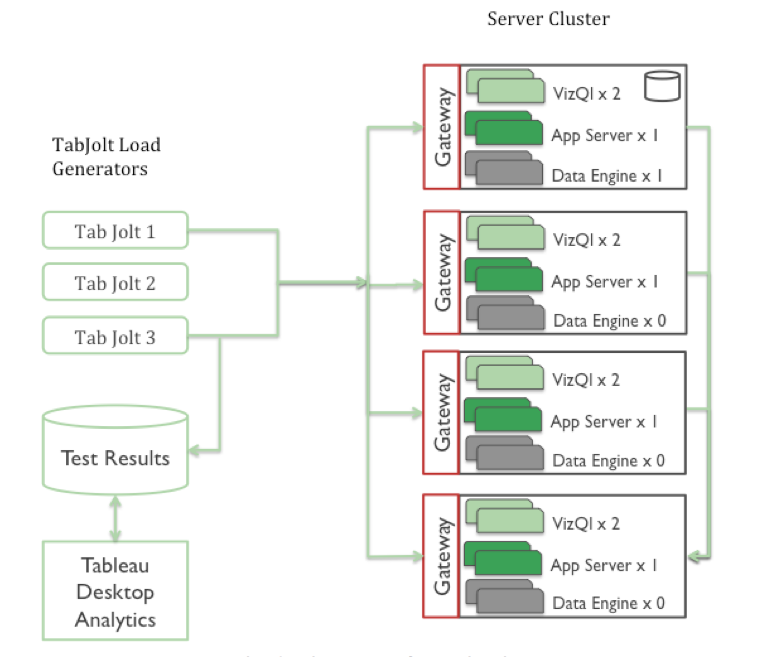
TabJolt can be installed on one or more load generator machines and can drive load to one or more nodes in a Tableau cluster. How you deploy the Tableau Server cluster depends on your test configuration and planning needs. The figure below shows one example.
TabJolt uses JMeter under the hood and is capable of not only executing large Tableau workloads on Tableau Server, but also gathering critical system and infrastructure metrics as well as application JMX metrics.
TabJolt can automatically load and interact with Tableau visualizations published on Tableau Server. All you need to do is configure TabJolt and point it to the correct server instance and workload. TabJolt simulates virtual users based on your configuration settings, and measures various metrics. It records those metrics in a Postgres database where you can maintain a history of your tests.
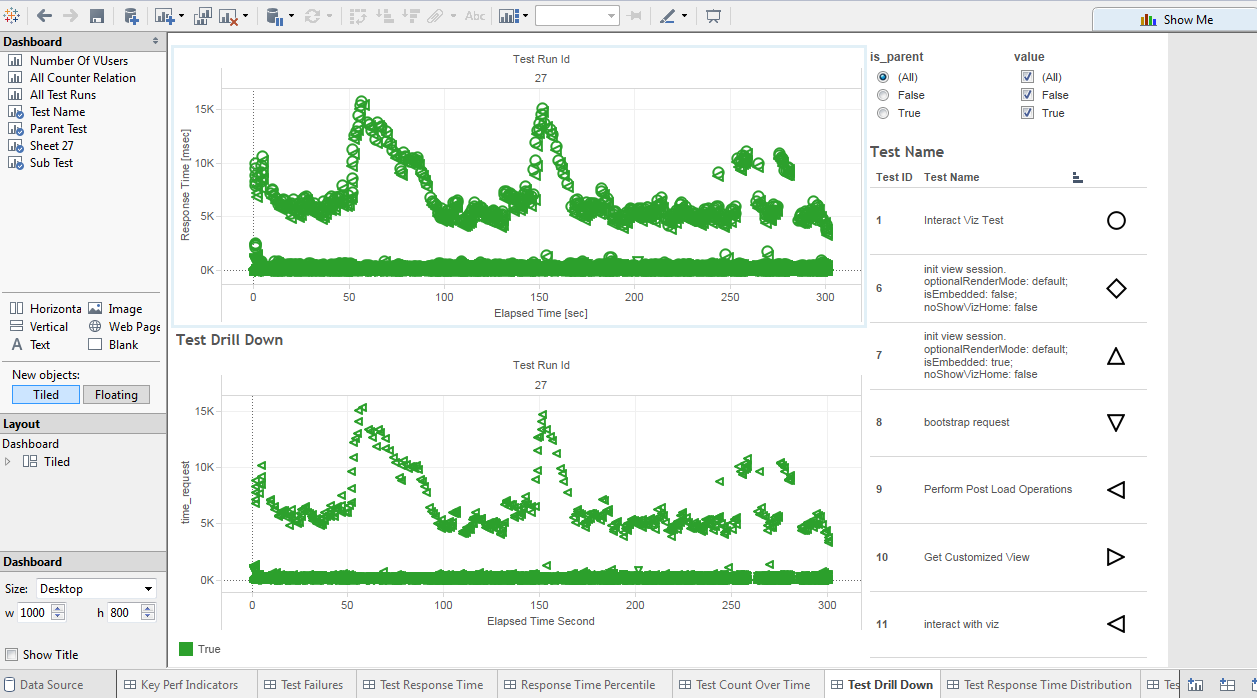
After completing the tests, you can open the Tableau workbook we provide in the download, connect to your instance of Postgres, and analyze the results. The Tableau workbook has some pre-built analytics views to show you key metrics out of the box. TabJolt, however, does not draw conclusions or infer your direct-capacity needs based on test results. As the user, you should be familiar with performance and load testing methodologies, and be able to draw conclusions based on observations from the data.

How to Get Started

So let's get started. The process is relatively simple:
1. Install prerequisites.
2. Configure TabJolt.
3. Run your first test.
In this version, we don’t have a packaged installer for all the third-party dependencies, so make sure you have them downloaded and installed separately.
Prerequisites
To install TabJolt, you’ll need a Windows machine with a minimum of two cores with at least 8GB of RAM as your load generator. As a best practice, you should monitor this machine for CPU and memory to ensure that your test runs don’t bottleneck the load injector. In addition, you’ll need the latest versions of Java, 
Tableau Desktop 9.0
, and Postgres.
For a realistic load test, you should NOT use the Tableau Server Postgres instance for recording and storing your TabJolt test results. You don’t want the act of measuring your system to impact your system under test. So it’s important to keep your Tableau Server, the system under testing, separate from Postgres for TabJolt.
You can find Postgres configuration steps and troubleshooting tips in the installation guide you downloaded with TabJolt.
Your First TabJolt Test Run
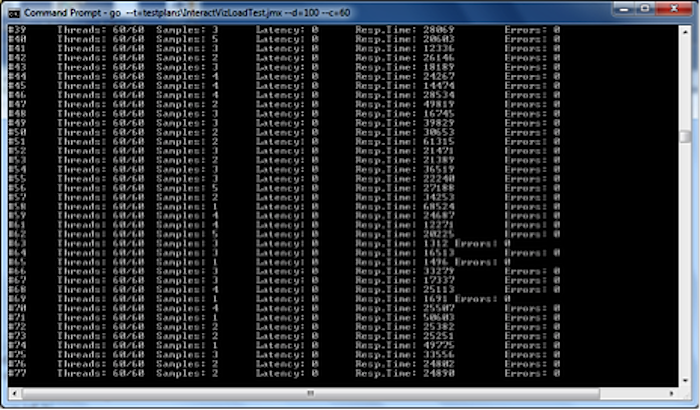
Now you can start your scale test by using a Windows command prompt, navigating to c:\tabjolt, and running the example command below. This example tells TabJolt to run the test for 60 seconds (using “--d”) and run a single user client (“--c"). Of course, you can change these parameters as you wish.
Command: go --t=testplans\InteractVizLoadTest.jmx --d=60 --c=1
IMPORTANT: At the end of the run, on the command line, you will get the run id, which you need to use as a filter when analyzing your data in Tableau Desktop.
Explore all the options with go /? and experiment with the options. If you expect to execute many runs, consider adding a useful description to your runs using the command line “--r” followed by the description of the run.
Analyzing Results
Once the run is finished, open up the analysis workbook located at c:\tabjolt\PerformanceViz.twb using Tableau Desktop. You will need to provide the username and password for your TabJolt Postgres repository that you installed earlier (please see the installation guide on default credentials). You can update the default credentials in PerfRunHarness.Properties.
You can view the test results and review each of the worksheets.
Analyzing your load test data is like exploring any data with Tableau. TabJolt has some key worksheets as a starting point. Standard KPI metrics like response times, test cases per second (tps), host metrics, and JMX metrics (if configured) are visible in the workbooks automatically.
When you look at these results, you can quickly find patterns and check how your workload is behaving under load. In addition to standard metrics, TabJolt provides additional visibility and drill-down options for easier triage. Using these tools, you can find out which requests and tests are failing, and why.

Tableau performance testing sample

The Experiment

To pinpoint performance bottlenecks, we set out to benchmark Tableau. At it's core, the experiment is quite simple: take create a dashboard "template," use increasing sizes of data sets, use various connection types, and measure performance with Tableau's performance recording feature.


Here is our experiment setup:
  • Test workbook: one from a client that used line charts, tables, maps, dashboard filter actions, and parameter filtering
  • Data set sizes: 500,000 rows, 2 millions rows, 5 millions rows 
  • Connection types: Hortonworks Hive, Oracle Database 11g Express Edition, Tableau Data Extract
 In our testing, we measured the processing time for the following:
  • Load time of the dashboard
  • Filtering a map and removing the filter
  • Parameter filters of a text table


The Results

Our results were not surprising: working with flat files is faster than working with an ODBMS connection and working with extracts is faster than working with live connections. However, an extract of a CSV (or similar) isn't always an option when working with clients. In this case, the live Oracle connection had an acceptable performance rate on Tableau server. We are still analyzing our results and will followup in a future blog post.

Testing and Product Process in Tableau Server

I'll start off by saying that when using Tableau Sever (Especially enterprise core models), the management of the 'Reporting Asset Pipeline' if-you-will, is a crucial process for any decent task workflow.  In my mild (couple years) experience with various industries and clients it is a conversation to have at time of consideration when Buying Tableau Server.  If you are finding yourself in the situation where you must create this process with an existing hierarchy of 'junk' already being thrown about in your data server this can be difficult.

A few quick answers to help you get organized:
  • How do you make updates to previously deployed dashboards?
    • Depending on the need/use for the dashboard I will just publish it to a DEV or TEST (site/project depending on your server structure) and append my initials to the end of the file name [ex: Testworkbook-jk.twbx].  I use this when I need some specific changes that have been made to be approved or looked at by a client at which time the client (who has rights to edit my published material) will usually just publish that exact workbook without my initials to it -- this is overtop of the original one and will later navigate back to the DEV/TEST-project/site and remove the old one.  I also will make a local copy of my altered workbook with my initials and date of when I created/made changes.
    • Another option that is for systematic updates is to use the built in scheduler for data and extract refreshing in server.
    • If it is not a data issue but rather a dashboard design/ad hoc analysis complication, I would create a separate site or project in the server for everyone to drop their in-progress works and have a file naming convention that allowed each user to keep track and replace as needed while still allowing others to find and see their progress in a central location.  (i.e. testdashboard_draft/ver1.twbx, etc...)
    • Again it changes according to the needs of the business, the users and workflow constraints (data securities, turn-around-time, authoring rights, etc...).
  • How do manage the revisions of these dashboards?  Does Tableau have method of keeping a version of each workbook?
    • Like my first response above if you have a separate area in your Tab Server you can manage version control with simple but uniform naming convention, or use the landing area as a historical record of everything and only publish to a different Project/Site when the changes are 'ready-to-deploy'.
  • How do you deploy an updated dashboard into the production area if the name already exists?  Does Tableau let you overwrite?
    • Yes Tableau has a dialogue box that appears and will say a file, object, etc.... already exists with that name would you like to overwrite that object?  with a yes or no option.

Creating Testing Environment in Tableau server

Our current approach is to create multiple project names on the Production server (e.g. Test, Staging, Production).  As we proceed through the different workbook development phases (Test->Staging->Production), we name the workbook with a prefix of the project name (e.g. "Test-Workbook Name")...and when we get to Production, we just name the workbook as the "Workbook Name". 

The reason for having different names is that even though you can publish one workbook with the same name to multiple projects, the project is not like a folder on a file share.  Publishing under different projects seems to me to be just an attribute of the workbook name.  As a result, a change to the workbook and then publish just to one workbook under a project results in the views changing on the other workbooks (with the same name) that reside in other projects.

With having a unique name for all published workbooks means that they are not shared but treated as their own unique workbook.  As a result, I can publish a workbook to Production but work on new enhancements under the Test project and not affect the Production workbook until I publish and overwrite current version.