Showing posts with label product information mgt. Show all posts

Monday, 12 October 2015

BOM Journal Posting in AX 2012

BOM journals are being used in the Production Module.Bill of material journal is used in order to receive the finished good into inventory and issue the component items.Unlike any other journals, like Movement Journal Posting or Counting Journal posting, BOM journal posting is little bit different. Lets discuss on the same in details.

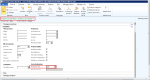
First of all, we need to create a product with Production type as BOM for the item on which BOM posting will be done under the Engineer fast tab.
Navigation: Product Information Management > Common > Products > Released Products
NOTE: Given the Name of the BOM item as Finished Good-BOM.
Pic-1
Now I am taking some general items (Item name- Test-1, Test-2 and Test-3) having the Production type as None and attaching these items into the BOM item (Finished Good-BOM) that we have created just before.
NOTE: The general items that will be attached with the BOM item (Finished Good-BOM)
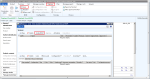
Taking the BOM item > Engineer Ribbon > BOM pane > Lines > Create BOM
Pic-2

Enter a description under the BOM and enter the site and then click OK.
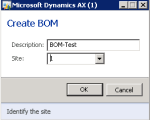
pic-3
Attach the items into the BOM lines and then Approve and Activate the BOM by clicking the  Approve and Activate button.
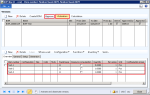
Pic-5
Now Navigate to Inventory & Warehouse Management >Journals > Item Transaction > Bill of Materials. Click New Journal and go to lines.
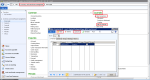
Pic-6

Now click BOM > Reported as Finished

pic-8
Now create a new entry (Cntrl + N) and select the item ( as we have used this item Finished Good-BOM). Select the BOM under the BOM field.
NOTE:  Make the Post Now field as unchecked. Explosion as always. And then click OK
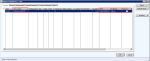
Pic-9
Now once I click OK, the lines will come under the original journal lines form.
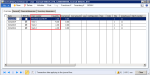
pic-10
NOTE: the negative sign shows that this item is being consumed.
Click Validate to Validate the Journal
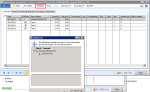
pic-11
Click Post to Post the Journal
pic-12

Monday, 21 September 2015

Why is inventory closing performed & how Ax maintains weighted average costing ?

Q. 1 Why is inventory closing performed?
Ans. Inventory closing is performed to reach out to the actual COGS of issued item quantity. This actual COGS make sure the right profit is calculated for the issued quantity. It can be more understanding with the example given in second question of how does weighted average costing method works.
Q.2 How does weighted average costing method works?
The same can be explained with the following data;
Inventory MethodWhen receipt transactions & issue transactions are  posted in system, it updates item COGS based on running calculated average cost method.
In the above example, first time item is sold with COGS value of 12. Second time item is sold with COGS value as 10.8. Assuming the total sales value of sold item qty (1+1) = 50, the profit comes as 50 – (12+10.8) = 27.20. Though this profit cannot be justified since same item cost differentiates whenever it is sold.

To reach to the actual COGS, we run inventory costing on a specific interval i.e. monthly, quarterly. The inventory closing is done to get the right COGS based on the costing method defined in the system. In an example where costing method is defined as weighted average cost & considering above mentioned data, system calculates average cost of receipts quantity first;
(D2+D3+D6)/(C2+C3+C6) i.e. (16+20+30)/(1+2+3) i.e. 66/6 = 11
So COGS per item shall be 11.
For sold quantity of 2, posted COGS = 22.8
Recalculated COGS                                   = 22 (11*2)
Inventory adjustment entry will be posted with .8 to rectify the COGS & to reach to the correct sales profit i.e. 50-22 = 28.

Creation of a New Product using Product Template in Ax 2012


  • Navigate to Product information management -> Common -> Products -> Released product
  • Select an existing item & double click on it or click edit
  • Click menu Product -> New -> Template -> Create Personal Template
  • Mention name and description per your convenience
Product Template


  • Click Ok

Now create new product
System opens the following window where you can define product name, search name etc.
Product Template_Drop down


Navigate to field ‘Apply template’ and Select drop down list against it
System provides the option of creating new product based on pre-defined template of ‘Product template’ or Blank one.
Now we are good to go to create a new product/item based on pre-defined template