Sunday, 31 July 2016

Dealing with Renegade Factory Salespeople

In a recent conversation with a very progressive distributor, we touched on an age old topic: the activities of factory salespeople.  To give you a flavor for the call a bit about the distributor. 
 
They are extremely qualified, technically competent and have demonstrated the ability to drive their business forward.  In a time when most distributors in their sector are struggling, their sales are still pushing upward; well ahead of the industry average.  At the highest levels, their supply-partners admire their work, but there is a strange disconnect at the local level.  The local factory sales guys don’t seem to get along with the distributor folks. 

Things get complicated from here.  The distributor, being technically qualified, well trained and totally familiar with their supplier’s products doesn’t need a lot of support.  In a couple of instances, it turns out the distributor team is actually more savvy on the products and applications than the factory sales team.  At a glance, the scenario sounds like the factory salesperson’s dream.  However, friction has developed between the groups. 

The root of the problem...  
The distributor salespeople don’t feel like the factory sellers bring value.  In fact, they believe the factory team slows down the selling process.  On the other hand, the factory guys don’t feel like they are being used properly and see this as a lack of aggressiveness on behalf of the distributor.  Communications suffer and ultimately the disagreement creates problematic “noise” in the relationship.

Complicating the situation, the distributor shares the line with other distributors, which creates some serious repercussions.  Lacking a connection (or sense of appreciation) with my distributor friend, the factory sellers focus their efforts on the other distributor.  In some regards, the factory team actually serves to “prop up” the lesser sales efforts of a weaker competitive distributor.  This happens in a number of ways, but here are a few examples:
·         Most of the factory generated leads go to the competitor.
·         When the factory person “stumbles onto” potential business it is steered to the competitor. 
·         Factory people provide technical services on behalf of the competitor and, thus offset the technology based resources paid for by my distributor friend.
·         Distributor activities reported up the chain of command at the factory paint a picture of aggressive action from the competitor.
·         Negative, or at best, neutral reports are provided back on the better distributor.
·         The response time on pricing required for special commercial situations are slow in coming and most likely questioned more strongly.  This impacts the good distributor’s ability to improve gross margins.

We must understand the whole situation…
Let’s walk a mile in the factory salesperson’s moccasins.  They have a job to do.  And, if my friend’s sales team won’t work with them, they are going to find another outlet; in this particular case – the competitor.  Getting uncharacteristically soft and fuzzy in my comments, they want to be appreciated.  If they feel the love from the competitor and not you, they will help the other guy and (perhaps unconsciously) do harm to your effort and definitely damage your relationship with their management many miles away.

Taking this point a bit further, these factory sellers will work doubly hard to justify their decisions in the field.  It’s a mistake to believe that routine reports and casual conversations with co-workers will not continuously play a narrative of their hard work, customer intimacy and strength in the market.  The customers they choose to introduce to management will be those of the competitive distributor, and probably carry loud messages of why they selected the other guy over you. 

Experience dictates all of this leads to unnecessary and unwanted friction between business partners.  Something needs to be done.  Even if you are right, you still loose.

An action plan….
No message of love and appreciation here, instead think of this as a business plan.  Three basic principles apply; invest, manage and harvest dollars. 

What is the investment?  A little time, some direction, a few compliments and a dash of activity.  Let me hammer out a few ideas:
·         Does the factory guy know on which accounts you are currently?  If they don’t, there is a chance they could inadvertently visit the prospect with the competitive distributor.  This could create a new competitor and might end up with the other guy getting price support which could be used against you.

·         Have you asked the factory guy for leads lately?  The other folks are probably getting the lion’s share of the leads now.  When you ask, promise to communicate results back and involve the factory sales guy in future activities.

·         Set target accounts together.  Assign some responsibilities to the salesperson and some to yourself, keep records and agree to the end results.

·         Schedule joint calls.    While every situation is different, I typically recommend starting off with three days per month.  Spending a day with the salesperson allows you to build a relationship, that’s a good thing.  Further, a day spent with you is a day not spent with the competitor.

·         Arrange for the factory salesperson to handle a few routine issues.  You probably know how to get literature from the factory.  You may even know who to call to get samples, demos and other sales tools.  Assign the action to them.

·         Involve the factory salesperson in lunch and learns, technical presentations and anything else where their presence can be viewed positively.

Now for the managing portion:
·         How can you help the factory salesperson meet their goals?  Get a list of the points on which they are judged.  Don’t expect all of these to be in full alignment with your own goals.  However, understand will help you get more from the vendor sales guy.

·         Keep track of the agreed upon activities.  If the factory salesperson misses a date, doesn’t come through with the promised sample or something else specific, keep a log.  This allows you to provide some level of critique and also understand their weaknesses. 

·         Provide praise, share the thrill of victory.  If they assist, even in a small way, in the capturing of a new account or gathering more business, make it a point to thank them personally.

·         Help them understand the value of working with you.  This comes in the form of periodic reviews of activities and successes.

·         When appropriate, praise them in front of their boss.  Nothing is better than a fat juicy compliment on your work to the big boss man.

The dash of activity:
Find ways to engage and keep them busy.  Remember, a day spent working for you is a day spent not working with the guy across town.  This is so very important, let me repeat.  Consume major portions of their time.

Finally, it is the real world, so let’s cover the two most common scenarios….
Let’s assume the guy is a total jerk and caustic to customers.  Working with him is painful.  Working with him may damage customer relationships.  His boss may or may not know the situation.  Complaining does little to move the needle ahead.  Specific examples allow you to provide feedback without looking like a whiner.  Follow the steps above and in short order, you will have a log of unfortunate instances to discuss.

Fortunately, most times the situation isn’t a complete fiasco.  The guy has some socially redeeming qualities, he just lacks the skills to work in your organization.  While it’s not your job to train factory salespeople, good things could happen.  The guy starts to get the picture and joins your team, leaving the clunky competitor in the dust.  You get an ally and another resource.  Life is good, we all live happily ever after….  Or maybe we just make a little more money, buy a vacation package to Bandera Bay.  Somehow, there aren’t that many unhappy people sipping cool drinks on the beach.


Friday, 29 July 2016

How to use Text Functions in Excel

Hello Everyone, Today we'll discuss How to use Text Functions in Excel. Text Functions return an information about a text string and also used to combine a text string and a number together. Excel string Functions have been grouped into various category and today we'll discuss some Text Function Category like Text functions to remove an extra character, Functions to convert excel data type, Function to convert the Text in LOWER case and UPPER case.

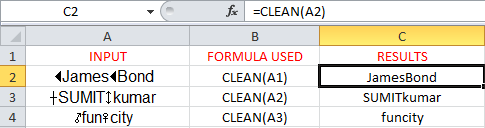
How to Use CLEAN Function in Excel

The CLEAN text function is used to remove all non-printable characters from the text. 
Formula used: =CLEAN(text)
Excel Text Functions, Excel Text, Excel mid, Excel Find Function, Excel convert text to number
Here we have some non-printable character in column A and our aim is to remove this non-printable character for that we use the CLEAN function.

Use of TRIM Function in Excel

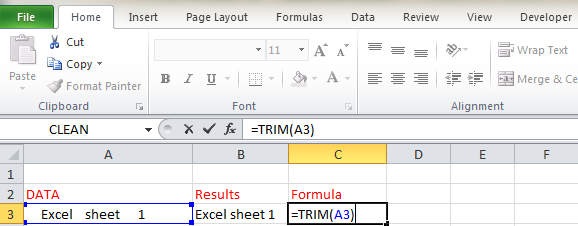
Trim Text Functions is used to remove extra spaces (except single spaces) between words from text strings.
Formula Used: =TRIM(text)
Excel Text Functions, Excel Text, Excel mid, Excel Find Function, Excel convert text to number
Here we have a text string "Excel sheet 1" with some extra spaces so here we used TRIM function to removes the extra spaces.

How to Create LEFT Function in Excel

If you want to return a certain number of characters from the text string then you can use LEFT functions. Basically, LEFT function returns a specified number of characters from the beginning of the text strings.
Formula used: =LEFT(text,[num_chars])
Note: [num_chars] is set to the default value 1 means return first character of the strings.
Excel Text Functions, Excel Text, Excel mid, Excel Find Function, Excel convert text to number
Here you have a text string "EXCEL TEXT" and you want to first 5 characters of the string then you can use LEFT function to fetch the character from the begging of the text strings.

How to Create RIGHT Function in Excel

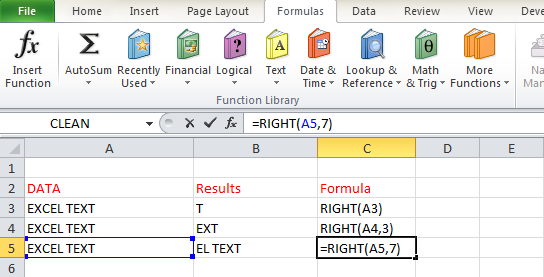
If you want to return a certain number of characters from the text string then you can use RIGHT functions and the RIGHT function returns a specified number of characters from the end of the text strings.
Formula used: =RIGHT(text,[num_chars])
Note: [num_chars] is set to the default value 1 means return first character from the end of the text strings.
Excel Text Functions, Excel Text, Excel mid, Excel Find Function, Excel convert text to number
Here you have a text string "EXCEL TEXT" and you want to 7 characters from the end of the text string then you can use RIGHT function to fetch the character from the end of the text strings.

How to Create MID Function in Excel

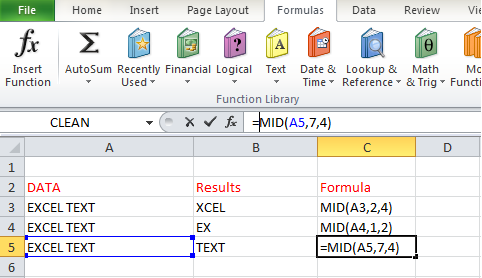
If you want to return a certain number of characters from the text string then you can also use Excel MID functions and MID function returns a specified number of characters from the MID of the text strings.
Formula used: =MID(text, start_num, [num_chars])
Note: start_num is the integer value that specifies the position of the first character and [num_chars] cannot be blank.
Excel Text Functions, Excel Text, Excel mid, Excel Find Function, Excel convert text to number
Here you have a text string "EXCEL TEXT" and you want to 4 characters from the seventh position of the beginning of the text string then you can use MID function to fetch the character from the specified position of the text strings.

Use of CONCATENATE Function in Excel

CONCATENATE Text Functions is used to combine two or more string together into one combined text strings.
Formula Used: =CONCATENATE(text1," ", text2.........)
NOTE:   " " is used for single space between two text string or word.
Excel Text Functions, Excel Text, Excel mid, Excel Find Function, Excel convert text to number
Here we have a two or more text string in a different location and we want to combine all the strings in a single location then use the CONCATENATE text function like combine AMIT and KUMAR and get AMIT KUMAR in a single cell.

Use of REPT Function in Excel

REPT text function returns specified number of times repeated text string.
Formula used: REPT(text, number_times) 
Note: If number_times is zero then it returns an empty string.
Excel Text Functions, Excel Text, Excel mid, Excel Find Function, Excel convert text to number
This function is used to get the multiple times of text string like we have a text string "ha" in cell A2 and we use the REPT function to get the repeated text strings and see the results in cell C2.

Create LEN Function in Excel

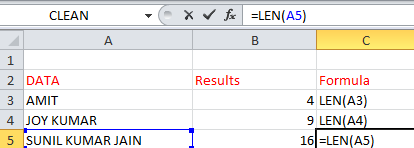
LEN function returns the length or number of character of the text string. 
Formula Used: LEN(text)
Note: Empty string has length zero and a single space also count in the length.
Excel Text Functions, Excel Text, Excel mid, Excel Find Function, Excel convert text to number
This function is used to count the length of the text string like in cell A5 we have a text string "SUNIL KUMAR JAIN" and using the LEN function we find a length of this text string.

Create FIND Function in Excel

Excel Find function in excel returns the position of a specified character or sub-strings within the text strings.
Fomula Used: =FIND(find_text, within_text, [start_num])
Note: Find Function is a Case-sensitive function.
Excel Text Functions, Excel Text, Excel mid, Excel Find Function, Excel convert text to number
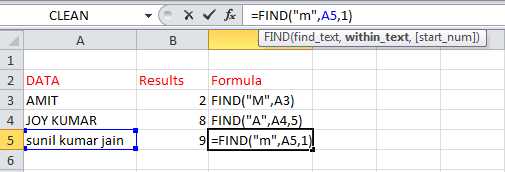
This function basically return the accurate position of the desired character like we want to find "m" character in cell A5 and we can fix the starting position of the text string so this function returns the position of the "m" character.

Use SEARCH Function in Excel

The Search functions in excel return the position of a specified character or sub-strings within the text strings. This function is similar to the FIND function. 
Formula Used: =SEARCH(find_text, within_text, [start_num])
Note: A SEARCH function is not CASE-SENSITIVE function.
Excel Text Functions, Excel Text, Excel mid, Excel Find Function, Excel convert text to number
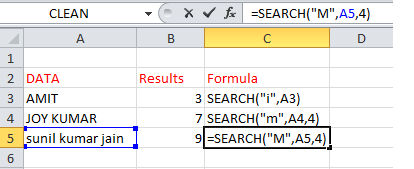
This function works same as the FIND function but a little difference is that it is not a CASE- SENSITIVE function means if we want to search "M" character in the text string but we have the "m" character in the text string then SEARCH function returns the position of the "m" character. 

Use EXACT Function in Excel

The EXACT function returns TRUE as a result if two strings or value are exactly equal otherwise, returns FALSE if two strings or value do not match.
Formula used: =EXACT(text1, text2)
Note: Exact Function is a Case-Sensitive
Excel Text Functions, Excel Text, Excel mid, Excel Find Function, Excel convert text to number
The EXACT function is used to compare two strings means if the characters of the two different string are same then  it returns TRUE as a result otherwise return FALSE as a result and the main point is that it is a CASE-SENSITIVE function.

Use T Function in Excel

The T function is used to check the supplied value is TEXT or not. If supplied value is TEXT then return the text otherwise, return the empty text strings.
Formula used: =T(Supplied value)
Excel Text Functions, Excel Text, Excel mid, Excel Find Function, Excel convert text to number
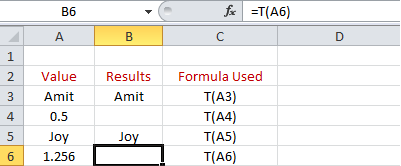
The T function is a very simple function, it check the text string either the string is text or not. If the input string is text like "AMIT" then T function return "AMIT" as a result while if the input string is any other format like value "0.5" then T function returns an empty string.


Create REPLACE Function in Excel

The REPLACE function is used to replace the text string with another string. You can also replace the part of the text strings with another part of the strings.
Formula used: =REPLACE(old_text, start_num, num-chars, new_text)
Note: The old_text is the text string that you want to replace and start_num is the position of the first character within old_text and num_chars is the number of character to replace and new_text is replacement string or part of the string.
Excel Text Functions, Excel Text, Excel mid, Excel Find Function, Excel convert text to number
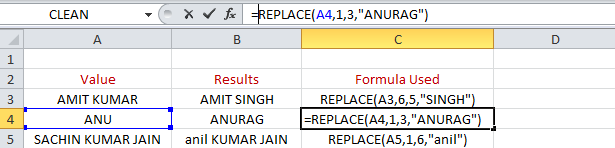
This function is used to replace the text string or part of the text with another text. Here we are 4 parameters to use this function. First is old text like "KUMAR" , second is start_num means the position of the first character of "KUMAR", third is num_chars means number of character in text "KUMAR", and finally fourth is new_text like "SINGH". 

Create SUBSTITUTE Function in Excel

The SUBSTITUTE function replaces one or more instances of a text string within an original text string. This function is similar to the REPLACE function.
Formula used: =SUBSTITUTE(text, old_text, new_text, instance_num)
Note: This function is a CASE- SENSITIVE. 
Excel Text Functions, Excel Text, Excel mid, Excel Find Function, Excel convert text to number
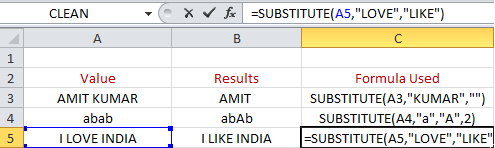
The working of this function is same as the REPLACE function but the difference is that it replaces the instances of the text string and also the CASE-SENSITIVE function. In cell A4 the instance "an" is replaced by "A".

How to Create UPPER Function in Excel

The UPPER function is used to convert all the characters of the supplied string in the UPPER case. 
Formula used:  =UPPER(text)
Excel Text Functions, Excel Text, Excel mid, Excel Find Function, Excel convert text to number
This function convert all characters in UPPER case like we have a text string "excEL" and we apply the UPPER function then this function changes all the character in the UPPER case.

How to Create LOWER Function in excel

The LOWER function is used to convert all the characters of the input string in the LOWER case.
Formula used:  =LOWER(text)
Excel Text Functions, Excel Text, Excel mid, Excel Find Function, Excel convert text to number
This function convert all characters in LOWER case like we have a text string "excEL" and we apply the LOWER function then this function changes all the character in the LOWER case.

How to Create PROPER Function in Excel

The PROPER function is used to convert all the characters of the supplied string in the proper case means to arrange the string in the UPPER case and LOWER case.
Formula used: =PROPER(text)
NOTE: The first The first character of the every word is converted in the UPPER case by the PROPER function.
Excel Text Functions, Excel Text, Excel mid, Excel Find Function, Excel convert text to number
This function is the combination of the UPPER and LOWER function. As the name suggest this function convert the text string in the proper manner and the first character of every word convert in UPPER case like "excEL shEEt" change in the proper format as "Excel Sheet".

Use CHAR Function in Excel

The CHAR function returns the character according to an input character set number from 1 to 255 and outcomes get from the ANSI character set.
Formula used: =CHAR(number)
Note: (1) The character set may vary in the different computer system so the result can also vary in the different computer.
(2) You can also get #VALUE! error from the CHAR function. It occurs when the input number is outside of the range 1 to 255.
Excel Text Functions, Excel Text, Excel mid, Excel Find Function, Excel convert text to number
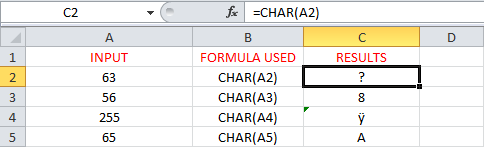
This function is used to get the character corresponding to the number according to the ANSI character set like we enter the number 63 in cell A2 and apply the CHAR function so get the character corresponding to the number "?".

Use CODE Function in Excel

The CODE function converts the first character of the input text string into the associated numeric set code. The outcomes of the CODE Function get from the ANSI character set.
Formula used:  =CODE(text)
NOTE: Return code may vary across the different operating system.
Excel Text Functions, Excel Text, Excel mid, Excel Find Function, Excel convert text to number
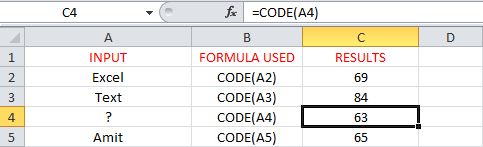
This function is opposite to the CHAR function means returns the numeric code corresponding to the first character of the text string like we have a text string "Excel" then by using the CODE function we get the numeric code of the first character "E". 


Create DOLLAR Function in Excel

The DOLLAR function converts an input number to a specified number of decimal places and we can also change the currency format by the DOLLAR function.
Formula used:  =DOLLOR(number,[decimals])
Excel Text Functions, Excel Text, Excel mid, Excel Find Function, Excel convert text to number
This function is used to convert a text string into another currency format like we have a data in the Indian currency then we can change the data in the USA currency like cell A2 have the string "125" in tIndianian currency and convert it into USA currency "$125".

Create FIXED Function in Excel

The FIXED Function converts a supplied number to a specified number of decimal places and then convert into a text.
Formula used: =FIXED(number,[decimals], [no_commas])
Note: (1)Number indicate the input number.
          (2)[decimals] specifies the number of decimal places that display after the decimal point.
        (3) [no_commas] specifies the return text should separate thousands by the comma. It has two                  value either TRUE or FALSE. TRUE means commas are not included in the resulting text                    while FALSE means commas are included in the resulting string.
Excel Text Functions, Excel Text, Excel mid, Excel Find Function, Excel convert text to number
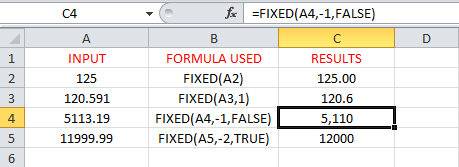
This function is basically used to convert a number to a proper format means we can manipulate the  number to the desired decimal places and we can also include the comma in the number like in cell A5 we have "11999.99" and apply the FIXED function with the left 2 position of the decimal places and no_commas is TRUE then get the Result "12000"

Create TEXT Function in Excel

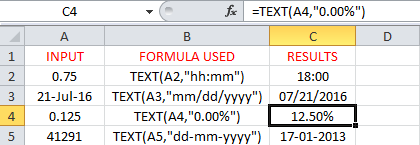
The TEXT function is used to convert a numeric value to text according to the user defined format.
Formula used: =TEXT(value, Format_text)
Excel Text Functions, Excel Text, Excel mid, Excel Find Function, Excel convert text to number
Here the text function returns the proper format of the input text string like in cell A4 we have the text string "0.125" and by using this function we get the proper format of this string as "12.50%".

Create BAHTTEXT Function in Excel

The BAHTTEXT function is used to convert a number into Thai text and adds a suffix "Baht".
Formula used: =BAHTTEXT(number)
Excel Text Functions, Excel Text, Excel mid, Excel Find Function, Excel convert text to number
The BAHTTEXT function simply convert any text into Thai Text like we can see above.

Use VALUE Function in Excel

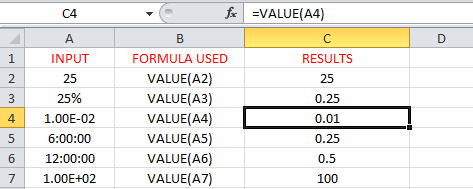
The VALUE function is to convert a supplied text string into a numeric value.
Formula used: =VALUE(text)
Excel Text Functions, Excel Text, Excel mid, Excel Find Function, Excel convert text to number
Here the Excel convert text to a Number by using this function like in Cell A4 we have the string "1.00E-02" and convert it into numeric value as "0.01".


Conclusion:
Thus, in this post, you will find How to Use Excel Text Functions. As we all know Text function is very helpful to convert any text string into the particular format as we want. If you like this post then you can share with friends, colleagues, and relatives. We'll update this information on the regular basis. You can also share this post on facebook, twitter, Google+ or other social media website. We hope that you like this post. If you have any query regarding this post you can freely write in the comment section. We'll revert back to you.

Thursday, 28 July 2016

Comparison between SAS, R and SPSS (Differences between SAS, R and SPSS)


Guys, I did spent quality time to understand the differences between SAS, R and SPSS, I know R very well, SAS a bit, from which I  somehow understood where R is better, Where  SAS is. I tried to put that in comprehensive way here for you. Fortunately I found some info graphics in internet which exactly reads about the information that we all are looking for.


Here you can find...


I would recommend you to notice R growth in terms of employment and popularity. Yes we all have to encourage and use open source technologies. I personally recommend you guys not to depend much on frame works that have always limitation, you can't travel beyond those hurdles. Its all ways better to have free hand to create what ever we aim to and that can be done using languages that open source.


Know About Revolution Programming Language in Statistics (R - Language)


R is a programming language and software environment for statistical computing and graphics supported by the R Foundation for Statistical Computing. Creators of R are Mr. Ross Ihaka and Mr. Robert Gentleman studied and invented at University of Aukland, New Zealand.  R is derived from S programming Language. 

Besides R environment supports following amazing concepts..
  • an effective data handling and storage facility,
  • a suite of operators for calculations on arrays, in particular matrices,
  • a large, coherent, integrated collection of intermediate tools for data analysis,
  • graphical facilities for data analysis and display either directly at the computer or on hardcopy, and
  • a well developed, simple and effective programming language (called ‘S’) which includes conditionals, loops, user defined recursive functions and input and output facilities. (Indeed most of the system supplied functions are themselves written in the S language.)
The term “environment” is intended to characterize it as a fully planned and coherent system, rather than an incremental accretion of very specific and inflexible tools, as is frequently the case with other data analysis software.


R is very much a vehicle for newly developing methods of interactive data analysis. It has developed rapidly, and has been extended by a large collection of packages. However, most programs written in R are essentially ephemeral, written for a single piece of data analysis.

You can also watch videos followed by..

A Funny for the CRM Haters


An engineering funny that had me laughing a bit more than necessary.  Tomorrow is Friday.  A great time to catch up on paperwork, follow up on calls, and check in with your favorite bloggers.  I'll be honest, my last post concerning CRMs was not well received.  I have a feeling so many of you just hate the THOUGHT of a CRM that you didn't even read the article!  Trust me, if you are a hater, and I can't say I have always loved them, there is something useful for you as well.  Brian Gardner knows what he's talking about!  That being said, I happen to love a little controversy.  Send me your hate mail concerning CRMs as I think this point needs some attention as well!  As usual, you will get a postcard from Iowa for submitting your idea!

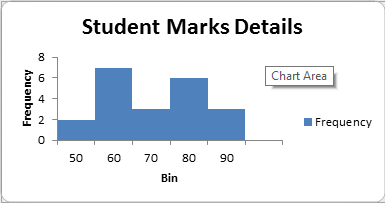
How to Create a Histogram in Excel

Hello Everyone, Today You'll find How to Create a Histogram in Excel. A histogram is a tool of Analysis ToolPak in MS Excel. It is used to represent the data in the graphical form and use the column chart to display frequency data . To create a Histogram in excel you need to organize the data into two column. You can easily analyze the data using the histogram tool in the MS Excel. In this tutorials, you will find the method to use the histogram and create a chart by using it.

How to Enable a Histogram using Analysis ToolPak

A histogram is a column chart that visualizes how to make the frequency excel data represent in two column on the spreadsheet. The first column represents the input data and the second column represents the bin numbers. Input data is the data that you want to analyze and bin numbers are the data intervals on that you want to apply histogram tool for measuring and analyze the data. For use the histogram first you need to install Analysis ToolPak in your worksheet. To enable Analysis ToolPak click here

Creating a Histogram in Excel

For creating a Histogram in MS Excel worksheet first, you need to enter the particular data into two columns so make an excel worksheet with two columns data.
Create a Histogram in excel, histogram excel, histogram chart, frequency excel
After entering the data on the worksheet you need to follow some steps to use the Histogram tool as:
  • On Data tab, Click Data Analysis.
  • Data Analysis Dialog box appears, Select Histogram and Click OK.
Create a Histogram in excel, histogram excel, histogram chart, frequency excel
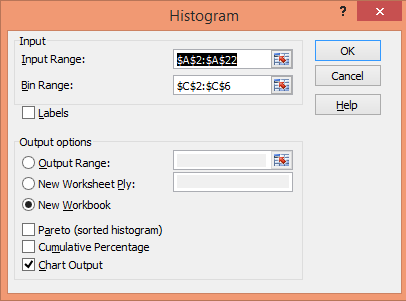
  • Then select the input range and bin range in the Dialog box.
  • Click new workbook and select the chart output check box then Click OK.
  • Get the result below.
Create a Histogram in excel, histogram excel, histogram chart, frequency excel

Customize and Improve Excel Histogram

We create a Histogram using the Analysis ToolPak and many excel functions. But it is also important to better visualization of your Histogram. We have another tutorial to modify the chart according to the requirement. For that, you can click here.

Remove Spacing between Bars

When you make a histogram, you want to an adjacent column in your Histogram chart without any gaps. To remove extra spaces between bars you can follow some steps as :
  • Double-Click on the column of the  Histogram chart.
  • Click on the Format Data Series.
  • On the Format Data Series, set the Gap width to zero.
  • Get the Result.
Create a Histogram in excel, histogram excel, histogram chart, frequency excel


Conclusion
Thus, in this post, you will learn how to create a Histogram chart in excel. We use the frequency function to create a Histogram in excel that returns the value that falls within the specified range (called bins). If you like this article then you can share with your friends and colleagues. We hope you will like this article and we'll update the information on the regular basis. You can also share on social media websites like facebook, twitter, and Instagram. If you have any query regarding this post then you can freely write your query in the comment section. We'll revert back to you as soon as possible. 

Monday, 25 July 2016

Getting a higher ROI from your CRM

Thinking about Money?
Thinking about Sales Process?
Thinking about CRM?
(A Book Review)
Talking to distributors, we have discovered that many of them have made big investments in Customer Relationship Management (CRM) Systems.  Many of them have pushed their salespeople to track customer contacts and enter opportunities.  Candid conversations reveal, however, that the vast majority still feel like they are not getting their money’s worth from their CRM system.  This brings us to the subject of this post: a book by SalesProcess 360’s Brian Gardner.

Brian brings a wealth of information to the topic.  He has decades of industrial sales experience.  He worked as a salesperson, sales manager and as a software developer.  Make no mistake, this book isn’t a 100 page advertisement for some software platform.  Instead, it’s about sales process and applying technology to automate the sales process.

Mr. Gardner reverses the process most distributors use to select their CRM system.  While many would simply create a technology checklist, which includes the items listed below, Gardner goes a step further and lays out a plan for objectively examining realities of your sales group.  This, of course, allows for overall process improvement.


Technical Checklist typically tied to CRM System Selection
·         User friendliness of the screens
·         Ability to link with Outlook
·         Web-based platform so salespeople can log in from the road
·         Managers ability to review opportunities in the system
·         Easy to get reports
·         Email broadcast capability
·         Mobile capacity

Further, the author lays out a plan for reviewing existing sales procedures to determine how the CRM system might be better used.  Using what he refers to as the “SalesProcess360 CRM Audit,” he directs the reader through a step-by-step analytic of their sales team’s operation in their native environment.  A sampling of the kinds of questions asked are provided (with permission) below. 

Sample Questions from the Sales Process Review
·         Are outside and inside salespeople teamed up?
·         Do you have products specialists?  What is their focus?
·         When a new outside salesperson is hired, what does their getting-started programs look like?
·         What are your sources for leads?
·         Are you doing opportunity management?  What is your definition of a lead?
·         What is the estimated number of quotes done per day by the company?  By person?

The end result is a CRM Roadmap Matrix which assists the leader in selecting the best pieces of the business for CRM based automation.

The book lives up to it's title: “ROI from CRM: It’s about sales process not just technology."  Gardner goes on to build a plan for measuring what a company might expect to garner from deploying the right system.  To me, this is the real meat and potatoes of the exercise.  For distributors fighting to build on their bottom line, the book provides valuable feedback on the real reason for employing both CRM and a sales process; increased revenue. 

From my perspective, distributors need to see and measure the ROI of employing a better sales effort.  Like everything in our business model, there has to be a payback for our actions (and cash outlays.)  Distributors don’t provide world class customer service for the bragging rights, we do it because it attracts profitable business.  We don’t spend nearly 60% of our gross margin hiring the very best people to look flashy, we do it because great people create better results.  The same analogy can be made with inventory, efficient warehouses, or top flight computer systems; we do it because there is a return on our investment.   The clearer the cause and effect picture, the more dedicated we become to putting the tools to good use.

Extending beyond all of this, the book outlines a plan for implementing your CRM system once you determine the right path to follow.  Better yet, the implementation plan is designed to help you harvest the low hanging fruit first – reinforcing the whole ROI idea.  The plan steers expectations; including some of the inevitable pushback from those who will resist even the slightest change.

Since this is a book review here are a few other interesting points

The book is written in a conversational tone.  It’s an easy and enjoyable read.  I started reading it on a flight from Minneapolis to the West Coast and finished it somewhere over Colorado on the way back.  Along the way, I took copious notes and made a number of points to share with colleagues and clients.

The book contains links to at least a dozen worksheets, spreadsheets and other supporting data.  This is worth the price of admission in its own right.

Brian Gardner knows what he’s talking about and it shows.  I would absolutely recommend anyone thinking about implementing a CRM system or just thinking about how process might work in their sales department to pick up a copy. 

You can buy your copy from Modern Distributor Management.

Post Script One:  Thinking back on this book, I see plenty of information which could help a struggling distributor “re-launch” their current CRM System to drive better payback.

Post Script Two:  If you have a book that you feel would be of value to colleagues on the front lines of Wholesale Distribution, we are open to your suggestions to the group.