Thursday, 9 April 2015

Creation of Inventory Journal Names and Assigning to Journals in Microsoft Dynamics AX 2012


In Inventory Management to adjust Inventory we need to perform those adjustment operation through Inventory Journals. Inventory Journals are Movement, Adjustment (previously known as Profit & Loss in earlier versions) , Transfers and BOM (Bill of Materials)
To create and post any Journal there are few prerequisites, like Journals names and Number sequence code or voucher series.
Now let us discuss regarding Journal name creation and assigning to related Inventory journals in MS Dynamics 2012.
To post any Journal we need to create a related journal name and need to assign to related Journal type. Another one is we need to assign related Number sequence code or voucher series to Journal.
For creating journals Navigate through below path
Inventory and warehouse management—>Setup—>Journals—>Journal names.
image
In the journal names form we can create the name and description of the journal also we can assign the Number sequence voucher series.
Click New tab in the top of the form and enter a specific name in the Name field and in description field.
Select Journal type as required in the Journal type field. 
Select Voucher series code in the General pane section in Voucher series field (Number sequence code)
Select Selection by option as required, options are Posting and Entry.
select New voucher by option as required, options are Change date and change date or item
Select option in Detail level field. options are Summary and Detail.
Select the check box Delete lines after posting if required. if selected journal lines are deleted after posting.
select ledger account in the Offset account field as required. (Note: This is applicable or enabled only for Movement journal type only)
The Journal names which were created should be assigned to the related Journals in below mentioned path.
Navigate to Inventory and warehouse management—>setup—>Inventory and warehouse management parameters—> Journals Fast tab –>All the Inventory Journals are displayed—> select the related journal names from the drop down menu.
image
Now Journals are ready for usage.

Printing Backorder Item lines in Sales order Packing slip and Invoice report in MS Dynamics AX 2012

Hi All,

Now we are going to discuss about how to print Backorder items in the Invoice report.
You all know Backorder lines are nothing but Items which are not delivered or not packing slip updated in a given sales order. AX provides information to Client and Customer regarding Information of undelivered Items in Packing slip and Invoice reports for a given sales order.
It requires small setup with 3 options in the below mentioned path
Navigation path.
Accounts receivable—>Setup –> Forms –> Forms setup—> Packing slip or Invoice
image
Field highlighted in red color box relates to Backorder tracking. It has 3 options
1) No tracking
2) Only backorders
3) Not delivered
NO tracking: If this option is selected in a packing slip, AX doesn’t print any backorder line items in the report. Below is screenshot for your reference.
image
Only backorders: If selected AX prints only backorders lines in the sales order Packing slip report as shown in below screenshot..
Not delivered: If selected, AX prints physical updated (Packing slip posted) and Undelivered or Not delivered items in the packing slip copy as shown in below screenshot.
image

Tuesday, 7 April 2015

How does under delivery functionality works in Ax 2012


Ordered item quantity+Under delivery % of ordered item quantity

Basic Steps::
2. Check, ‘Accept under delivery’ parameter is checked @ Procurement & sourcing  -> Setup -> Procurement & sourcing parameters -> Updates -> Accept under delivery
Accept Overdelivery


3. Check if under rdelivery % is defined against the respective item @ Released product details form

Item Overdelivery


Under Delivery :::10  
In real time business we come across to the scenarios where we have to accept the delivery with the lesser quantity of what is actually ordered.
To perform this scenario in Ax 2012, refer the following steps;
  • Navigate to Accounts payable -> Common -> Purchase orders -> All purchase orders
  • Create a new PO with the quantity of 8
  • Confirm the PO
Now you receive only 8 quantity out of 10 and no more item available with the vendor to deliver. You need to close the order with the acceptance of 8 quantity only.
For packing slip posting, click on menu button ‘Product receipt’
On packing slip form, mention receiving quantity as 8 in ‘Lines’ tab
8 Q


On the same line in ‘Lines’ tab, check checkbox field ‘Close for receipt’ and click ‘Ok’
check for receipt


System post the packing slip with 8 quantity.
To confirm packing slip is posted and no delivery is remainder, navigate to menu button ‘General’ and click on ‘Line quantity’.
Delivery remainder field is blank i.e. no quantity is pending to deliver.
deliver remainder_8


To make sure that under delivery functionality works fine.

ONE INVOICE FOR MULTIPLE PURCHASE ORDERS IN AX 2012

Post single invoice for multiple Purchase orders

There might be a case where the vendor sends a single invoice for multiple purchase orders, in this scenario we will see how to post one invoice for multiple purchase orders of the same vendor.
We are having two PO’s for the same vendor “US- 104 Fabrikam Supplier”
PO Number        Qty         Unit Price            Net Price
000134                  10           27.25                     272.50
000135                  15           78.99                     1184.85
Consolidated Net Price for Two PO’s is 1457.35
Step 1: Select the Two Purchase Order
Navigation: Procurement and sourcing> Common> Purchase orders> All purchase orders
  • Select the Two PO’s
  • Click on the Invoice tab
  • Then click on Invoice button
PO
Step 2: Consolidate the Two Purchase orders
  • Enter the same invoice number for the two purchase orders
  • Then click on the Consolidate invoices button
  • Under the Summary update select “Invoice account”
  • Then click on the Consolidate to merge the two PO’s into one
PO Consolidate
Step 3: Total amount of the two Purchase Orders
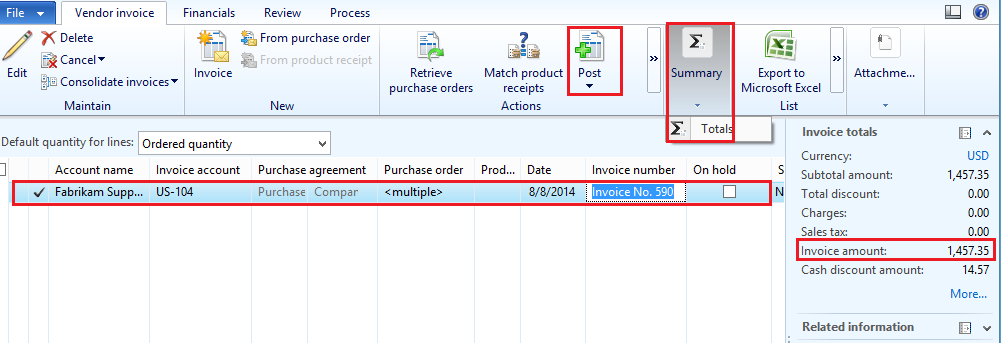
  • The Two Purchase orders are now consolidated
  • To check the Invoice amount – click on Summary – Totals or can view on the right side of the form
  • Click “Post” to complete the Purchase Order
PO Post
  • We can get the Print of the Invoice as shown below:
PO Print
Step 4: Verify the status of the Purchase Orders, its showing as “Invoiced”
Navigation: Accounts Payable > Common Forms > All Purchase Orders
PO Status
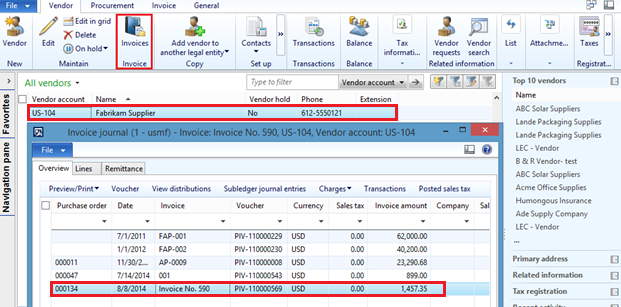
Step 5: Check the Vendor Invoiced entries
Navigation: Accounts Payable > Common Forms > All Vendors
  • Select the vendor “US-104”
  • Click on Invoice button to view to posted invoices
PO Transactions

Thanks for reading…

Tuesday, 31 March 2015

A Pricing Tale: Old Joe


Last week, I had the pleasure of addressing the sales team of a fast growing distributor. The topic was sales process and aligning with major industry trends. The group numbered in the mid-twenties and included salespeople from local territories throughout the central portion of the U.S. Prior to launching into my talk, I asked the group to give me a quick introduction outlining their position and background. As we moved through the first few members of the group, it was clear this team had deep product knowledge and understood their customer-base well.

About half way around the room, we came to Joe. As Joe introduced himself, I could see the way the other members of the team deferred to him. Joe was the Senior Inside sales person and when he outlined his industry experience it was impressive to hear the side comments from the group. Joe was THE go-to guy for any tough application or technical question. He exuded customer service from every pore of his body. You could tell Joe was rough, tough and ready let you know if he disagreed with you.

The talk covered a variety of topics ranging from targeting accounts and building a data base of customer-centric information to best practices in bringing manufacturers into accounts. As I moved through the presentation, I made a mental note to gauge Joe’s reaction. Early on, I asked his opinion on a couple of topics and, well, I felt like Joe was falling under my spell. Carefully considering each of my major points and then slowly nodding in agreement, I was feeling pretty good about the outcome of the whole presentation. But things were about to change…

I talk about the power of a solid, scientific pricing process in every presentation I deliver. Why? Because a good pricing process delivers to the bottom line. My clients experience better return (ROI) from money spent on pricing than any other investment; but that’s not the story here.


As I talked about best in practice pricing strategies, I could see old Joe’s face get stiff. His body was rigid, he crossed his arms and this person, who was so friendly, went from receptive to closed. I would have been blind to not see it. Furthermore, I was 100 percent certain everyone else in the room was feeling the bad vibe as well.

Sensing I was about to “lose the room” I asked Joe his opinion on pricing strategy. Joe shrugged and said, “From where I sit, standardized pricing, or whatever you want to call it, is destined for failure in our business. Our customers are tight with their money. They don’t want to pay more, they want to pay less.”

Going around the room, the group largely agreed with Joe with a couple of notable exceptions. One salesperson noted that some customers are willing to pay more when the product is in stock. Another guy stated repair parts were not price sensitive; especially when the customer is trying to hold out on replacing a whole system. Within a few minutes, we had a dozen or so examples of times where a
“standard” price would work. Everyone was on board, but Old Joe looked shaky.
I knew we needed to talk.

One-on-One with Joe
Clearly this isn't us talking.
I charge a higher fee to wear a tie.
Shortly after my presentation, I had the chance to talk to Joe one-on-one. Seated in a cozy spot in the hotel lobby, Joe shared his story and laid out his concerns:

Joe has been in the distributor side of the business for well over 20 years and worked with tools in the industry prior to moving to distribution. He’s been around the block, seen everything once and can give recommendations on products not even listed in the catalog. Since moving into the inside sales role, he has developed a following of people he calls “his customers.” They know him, a bit about his family and he knows them just as well. Further, even though a good many of these customer contacts are called on by outside salespeople, they pick up the phone and call him with their orders.

So far, so good. But then the story headed down a typical path.

Joe reiterated, “My customers are cheap.” When I asked what that meant, he said they called him because he was willing to “work with them on the price.” Before I could ask, he went on to tell me how sometimes customers called him when they were not happy with a price given to them by another member of the team. He called this “saving the order.”

A few years ago his company made a failed attempt at building a pricing process. Basically, this approach put a set margin on all products based on customer type. This is an approach my friend David Bauders calls peanut butter pricing. According to Joe no attention was paid to “real market price” or customer price sensitivity. After a number of months of battling one price change after another, Joe convinced his management team to go back to the old way with price points based on salesperson input and a guideline of cost plus 18 percent.

Interrupting his story, I asked Joe if some customers deserved to pay higher prices. First off he replied yes, but then I asked if there were times he provided small customers with the same price as the largest of accounts. Joe answered to the affirmative, he often allowed small customers to take advantage of the “special pricing” offered by manufacturers to handle the very large guys. He felt like this was fair because they were loyal to him.

Joe, are you a bargain basement discount house or a quality service provider?
This wasn’t a trick question. I really wanted to understand Joe’s feelings about himself and the company in general. I sat back and listened. Joe let loose with a deluge of stories about “walking a customer through the repair process”, finding impossible to get parts, staying late to meet a customer who was in a down time situation and generally providing fabulous service to customers.

When I asked if he had ever lost a customer due to service, the answer was a resounding NO. And, he could relate tales of customers who left because of price who found their way back because of poor service. When asked how he responded, Old Joe said he offered to match the competitive price then strived to give even better service.

Clearly, Joe (and the rest of the team) were a high service organization. But along the way, he couldn’t escape from the fact that people continued to ask him if “he could do better” on price. His opinion that they worked in a price driven market was largely based on these constant requests for a deal. They begged and nice-guy Joe gave them a treat.

As we ended our conversation, I asked Joe if he had ever held firm on a price. Without hesitation he told me sticking to a firm price only happens when the customer hasn’t purchased an item in several years and wants the historic, maybe even ancient, price level. I asked what happens then. He tells the customer prices have gone up, but uses the same cost plus a percentage strategy. And, he always gets the order.
Pricing process and guys like Old Joe…
In my travels around the country, guys like Joe are common; great product skills, fabulous customer service and a skewed vision of how pricing impacts their employer. Over the years Joe has been conditioned to believe, everyone wants a deal. Why? Because he has conditioned his customers to always ask for a little better price.

How has Joe conditioned his customers? They ask once and he caves in. Next go around, they hint that the price is a little more than they thought, and the price drops again. After a couple of go-arounds with the Joes of the world, customers think it is part of the deal. Just like a trip to the flea market, except with top notch products and world class service.

After two decades in the business, Joe has conditioned his customers and convinced himself. But hope exists. Little by little, Joe’s company is setting limitations on precisely which product prices can be over ridden without management approval. For example, exclusive product lines are no longer negotiable. The same applies to products where the company carries deep stocks of repair parts.

Joe will continue to grumble. He will test his management team’s commitment to improving the price process. He will need training, coaching and management, but I believe his actions (if not his views) will change with time. And the result will be higher margins and greater results for his employer.

A couple of final thoughts…
The idea of improving distributor gross margins has been around for a very long time. One of the very first training sessions I attended as a fresh young branch manager 25 years ago covered “the power of one.” Remembering back, the half-day session included the massive impact one measly percent in gross margin had on a distributors bottom line. There was no how to except to cheerlead your team to higher margins but putting up posters and continually reminding everyone of “the power of one.” The plan flopped only to be replaced with a dozen more pricing fads.

In order to build a real pricing process, a distributor needs advanced analytics, solid documentation, training and a means to measure and manage their team. Very few distributors (read that almost none of them) have the expertise to do this alone. Joe’s company tried and missed the mark, and the road to pricing success is littered with other distributors in the same situation.

We recommend David Bauders and his Strategic Pricing Associates team to our clients (like Joe’s company) for five reasons:
1. They apply scientific analysis to data from the distributor’s own work. No assumptions, no national averages, just a scientific look at what’s happened in the past.

2. They have documentation to steer a company through the application of pricing recommendations. Everybody in distribution is busy. The SPA program involves only a couple of weeks of attention to bring it live.

3. SPA has the resources to help train the distributor’s people. This includes pricing people as well as guys like Joe.

4. The SPA system has the measures and management tools required to change behavior.

5. David Bauders has been doing this since 1993. With something like 400 distributor clients and over 20 years of experience, they can help anticipate and address issues.

Now allow me one more statement. I have seen the results up close. The Strategic Pricing Associates process works. Typically, distributors add two points to their gross margin. Two points that pass almost straight to the bottom line. For most distributors, this is like a 50% increase in profit.

Saturday, 28 March 2015

purchase agreement

A purchase agreement is a contract that commits an organization to buy a specified quantity or amount by using multiple purchase orders over time. In exchange for this commitment, the buyer receives special prices and discounts. The purchase agreement can apply to a specific quantity of a product, a specific currency amount of a product, or a specific currency amount of the products in a procurement category. The prices and discounts of the purchase agreement override the prices and discounts that are specified in any trade agreements that exist.

In the Purchase agreements form, you can create, apply, and follow up on purchase agreements that exist between your organization and your vendors. For example, after you create a purchase agreement, you can order directly from it.

Every purchase agreement has a validity period that is defined by the person who creates the purchase agreement. The delivery date of a purchase must be in the effective dates of the validity period.

By default, a purchase agreement is on hold. You must change the status of the purchase agreement to Effective before you can create a purchase order for the purchase agreement.

Commitment types
Each line in a purchase agreement is a commitment to buy something. You can use lines from multiple purchase orders to fulfill the commitment. There are four types of commitments:

Product quantity commitment – You purchase a specific quantity of a product.
Product value commitment – You purchase a specific currency amount of a product.
Product category value commitment – You purchase a specific currency amount in a procurement category. The amount can be for a catalog item or a non-catalog item.
Value commitment– You purchase a specific currency amount of any product or in any procurement category.

ImportantImportant
The commitment type, which only specifies whether the purchase agreement is based on a value or a quantity, differs from the commitment document that is used by public sector entities in France. For more information about commitment documents, see (FRA) About commitments (Public sector).

Pricing terms for purchase agreements
Pricing terms can vary, depending on the type of commitment. The pricing terms from purchase agreements override any other pricing terms that are set up for trade agreements.
The following table describes the price-related fields that are affected by each commitment type. Fields that contain Yes can be updated on an order line.

Commitment type
Unit price
Price unit
Discount percent
Cash discount amount
Product quantity commitment
Yes
Yes
Yes
Yes
Product value commitment
Yes
Product category value commitment
Yes
Value commitment
Yes

Policies for purchase agreements
The following policies affect the way that the link between a purchase agreement commitment and the corresponding purchase order lines works:

Max is enforced – The total quantity or amount for all order lines cannot exceed the quantity or amount that is specified on the related commitment.

Price and discount is fixed – The price on an order line and the price on the related commitment cannot differ. If the price is changed on the order line, the link to the commitment is broken. If the link is broken, the order line does not contribute to the fulfillment of the commitment.

Minimum release amount and Maximum release amount – If an amount is specified, a message is displayed if you make any change to an order line that causes the order line to be different from the related commitment.

Fulfillment calculations for purchase agreements
The Fulfillment tab on the Line details FastTab in the Purchase agreements form displays fulfillment quantities and amounts.
In the Fulfillment area, you can view the total quantities and amounts for all order lines that are linked to the specified purchase agreement. You can also view the remaining amount or quantity that is required to fulfill the commitment.

In the Agreement area, you can view the quantities and amounts from the specified purchase agreement. These quantities and amounts are the total quantities and amounts that were committed.

Tuesday, 24 March 2015

CHANGING CUSTOMER FROM ORGANIZATION TO PERSON IN AX 2012

When creating a customer in Microsoft Dynamics AX 2012, you can select a record type Organization or Person. When you forget to check this field, an error is made easily. So how can we correct this? This post will guide you to change the customer from Organization to Party or vice versa. It also applies to other entities like vendors.
Suppose a person created Ronald Trump as Organization by accident. Because this customer already has some transactions it is not possible to delete this record and create a new one.
ChangeParty1
How to change the record type?
Navigate the menu to Home/Area page. You can open the Global address book and create a new Party. Set the record type to Person.
ChangeParty2
Then go to the customer details form. Select the record which you want to change. In this case it is Ronald Trump. Click the button Change party association on the action strip you can find on the fast tab General.
In the New party record field, select the new Ronald Trump record.
ChangeParty3
You have to confirm this action.
ChangeParty4
Now Ronald Trump is associated with an Address book record with the type Person.
ChangeParty5
You can delete the old Global address book record if there are no other roles attached to it.